The Mac is much different than Windows laptops and PCs. Suppose you have recently switched to a mac from windows, then you have a lot to learn about Mac. So, everyone knows how to create a bookmark. It’s the same on Mac, but you may not be able to delete bookmarks on Mac like you could do it on Windows.
The tasks that are simple on Windows laptops may be very difficult or completely different on Macs. So, here we’ll tell you about what a bookmark is and how to delete reading list on Mac?
What is a bookmark?
In computer language, a bookmark is simply to save an address of the website or page which we are interested in. During our daily use, we come across many pages and websites which are good, and it may be hard for us to find them later. Thus we add them to our bookmark. This enables us to save the address of that particular page and site so that we can visit it anytime we want.
Here are the complete steps to change Mac admin name easily.
How to create a bookmark on Mac?
Creating a bookmark is a simple task that almost everybody knows, but if you are new to Mac and don’t know how to create the bookmark on Safari, I can help you with that. Just follow the following steps:
- First, open the website or page that you want to add to your bookmarks in the Safari app.
- Look for the share button in the toolbar and click on it.
- Now select where you want to add the bookmark.
- Name the bookmark accordingly and click on the add button.
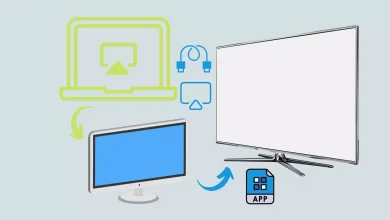
Want to see your favorite dramas, shows, & movies on a big screen, then mirror your MAC screen to Samsung TV.
Why create a bookmark?
As bookmarks are created to save the address and page of a website, then you should do it only if you really think that you’ll visit the site again. Sometimes there are sites such as a student or employee portal that they need to visit again.
Frustrated by subreddit content and behavior, check out this complete guide for reporting subreddit behavior.
In such cases, you must have a bookmark, so it takes no time for you to get on your page. It gives easy access to the users without getting through any other search options.
How to remove bookmarks on Mac?
If you have too many bookmarks, it may be troublesome to find your desired bookmark. So what can you do to save yourself from this trouble? It’s simple to just remove the unwanted bookmarks. If you are using a mac and don’t know how to delete bookmarks, I’ll guide you through it. Here I’ll provide various steps which you can apply to remove bookmarks from Safari, Firefox, and Google Chrome.
How to remove bookmarks from Safari on Mac?
In case you use Safari as your main browser on Mac, you can just follow these steps to remove the bookmark from it.
- Open the Safari browser on your Mac.
- Look for the sidebar icon and click on it.
- The sidebar menu will open and look for the bookmark option.
- Once you find it click on it.
- Look for bookmarks you want to delete and control-click on them.
- Now select the delete option.
- Done! These simple steps could help you manage your bookmarks on your Mac if you are using Safari.
How to remove bookmarks from Firefox on Mac?
Firefox is a very famous browser for Windows and also for Apple laptops. If you are using the Firefox browser, you may follow these steps to remove unnecessary bookmarks.
- Run Firefox on your Mac.
- Click on the books icon located at the top right side of your browser.
- A popup sidebar menu will appear to look for the bookmark option in it.
- Click on the bookmark option.
- See which bookmarks you no longer require.
- Control-click on those bookmarks.
- Now Delete those bookmarks by clicking on the delete option.
You’re all set up now. You can go to your bookmarks and can easily find the bookmarks which are important, and use them often.
How to remove bookmarks from Google Chrome on Mac?
Chrome is a very popular search browser that many people use, even on Apple laptops. So, to remove the bookmarks from google chrome, you must follow the following steps.
- Run Google Chrome on your Mac laptop.
- Click on the bookmark option available at the top menu.
- Now click on the bookmark manager. Now select the bookmarks you want to remove through a control-click.
- Select the delete option.
Why delete bookmarks on Mac?
Deleting a bookmark won’t help your laptop or computer run faster or anything, but it could help you manage your computer and bookmark history. The following are the reasons behind deleting the old bookmarks.
Not needed anymore
We come across websites daily and add the best of all in our bookmarks. What happens to the previous websites? We simply don’t use them anymore, so we can just remove them from our bookmarks so that we may have no problem while finding the desired bookmark.
Get all the fixes to the not working problem of bluetooth on Mac.
Saves time
Consider if you are a regular user of a laptop like me, and daily you add two or three websites to your bookmarks. How many bookmarks will be saved in your browser after a year or a month? So, finding the bookmark which you are looking for will take a lot of time. You can save this extra time if you just remove the unwanted bookmarks every week.
Minimize Clutter
When you don’t delete bookmarks, they stay up there and cause clutter in your system. You’d never like to have it and deleting them is the best way to minimize it. You may save the ones you’d like to visit after and delete the rest. If you want split screen then read the guide on DIRECTV split screen.
Final Verdict
It’ll save you from the struggle that you might face when finding the bookmarks that you want to visit again. Just leave the ones that you plan to visit again and enjoy a clutter-free browser on your mac.