Textra Won’t Send Pictures | Problem Solved
What is Textra: How it works; Complete Guideline

Textra is one of the best and most advanced SMS and Multimedia Messaging Service (MMS) apps available on the Play Store. It offers multiple features for hardcore users like built-in SMS scheduling, SMS blocking, improved group messaging, quick replies, MMS sharing, and many others. Except for some people who complain “Textra won’t send pictures,” many people still prefer using this App over many others.
What is Textra: How it works; Complete Guideline
Textra is one of the great-looking messaging apps that replaces applications on Android phones. It allows people to send and receive messages via their mobile carrier. 
Textra app allows you to send both SMS and MMS and offers you to do so much with them. This App is available on the Play Store in paid and free versions and has a feature-packed existence.
Textra Features
Text is one of the amazing apps available for sending MMs and SMS easily. It offers multiple features and is amazing as an alternative Android messaging app.
Along with providing you with over 180 material design themes and app icon colors, it also allows you to choose from various bubble styles and light, dark, and auto-night modes.
Besides, you can also send saved GIFs, quick voice notes, automatic video, picture compression, MMS group messaging, and much more.
All these features make a good reason for everyone to try out Textra App for sending both SMS and MMS. However, the only downside of this App is that it sometimes stops sending pictures, and most customers have complaints already.
Textra for Windows
If you think about whether the App can be used on a desktop or compatible with Windows, the answer is yes and no both. 
For instance, Textra doesn’t have its stand-alone Browser or desktop-based application. However, it comes with MightyText and PushBullet that you can install easily and then follow the instructions to set them up as desktop applications.
You can then use this App on your desktop with Windows 10 and use the Microsoft Your Phone app to make your android apps an alternative to the window on a desktop.
Textra Support; How does it help?
Besides providing you with amazing features to enjoy communicating with your friends and family, Textra also provides professional customer support. Textra understands the need for you to get in touch with professionals at any instant to solve your tech-related issues.

Textra comes forward with highly professional, skilled, and 24/7 available customer support that knows how to deal with each customer according to their needs. You can look up to them at any time and get answers to your queries.
Including providing you with online services, the support is always ready to assist you on call or message. So, one of the reasons most people around the globe prefer this App is probably its best customer service support and help.
Can’t set Textra Custom Notification Sound? Here’s what you can do
If you face trouble setting up custom notification sounds for Textra, there is a simple solution. Sometimes, you set the notification sound for your text messages or MMS, but it couldn’t be set up.
It might happen due to some issue in your settings, or your phone version might be showing some limitations.
Therefore, you should first try to go to settings, head towards the sound, then towards notification, and set the setting to the default sound. It might solve your custom notification sound issue.
App settings:

Custom notification sound:

However, if you still get an issue with setting up the custom notification sound after changing the sound settings, it might be that your phone version is not supporting the feature for Textra.
Textra not sending MMS; What’s the problem?
While most people are troubled by the issue that Textra won’t send MMS/pictures, it is to be known that the issue is not always the App itself. This means that the issue might be with phone or message settings.
So, you’re supposed first to check your phone’s settings, then head towards checking the message setting. Lastly, check the app settings and fix the problem if the problem persists.
Learn more if facing loud fan noise on your Mac.
Phone’s Setting
You need to consider the fault in the phone’s settings if you find a problem sending the pictures first. This is because you won’t be able to send pictures through Textra without making some changes in your phone’s settings.
This is to say that the Access Point Name (APN) for pictures and MMS is different from the APN for internet connection, and it also differs per network provider. So, it’s intelligent that you quickly find a way of sending pictures via your network.
If your network settings are wrong, it might happen that the pictures couldn’t be sent.
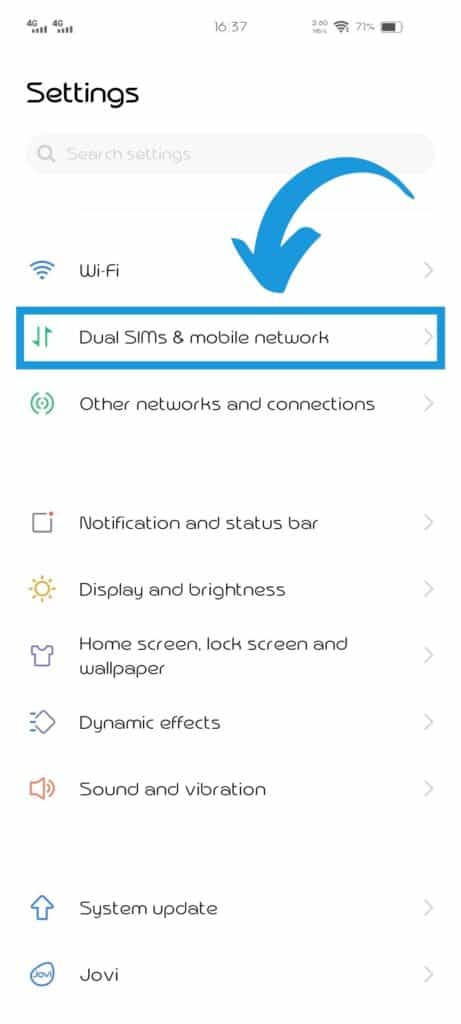
Settings for APN
Here are some settings that you should try making in your Android phones, with a slight exception and difference per model and manufacturer. For the OS version, the difference may also persist.
- Select telecom carrier.
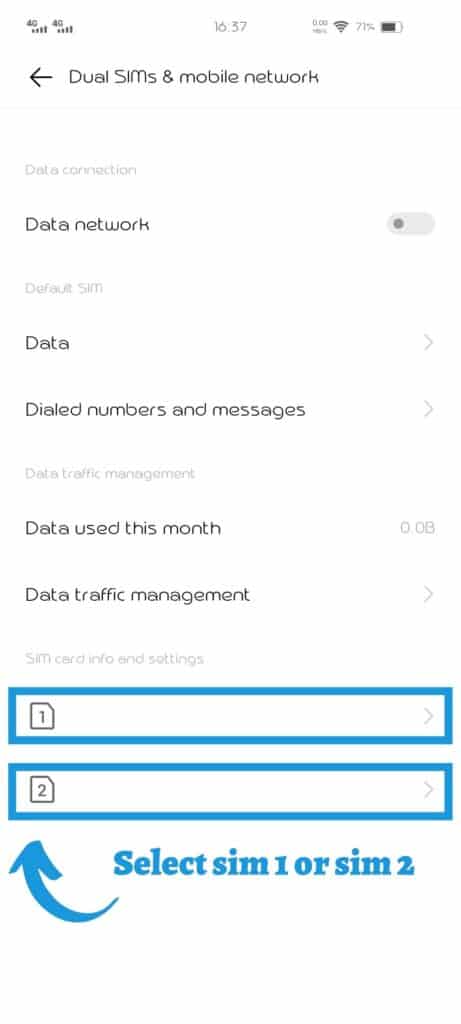
- Head towards Access Point Names in your phone’s settings.
- Tap on the APN to open its options.

- Tap on Reset to default.

- Now tap on New APN.
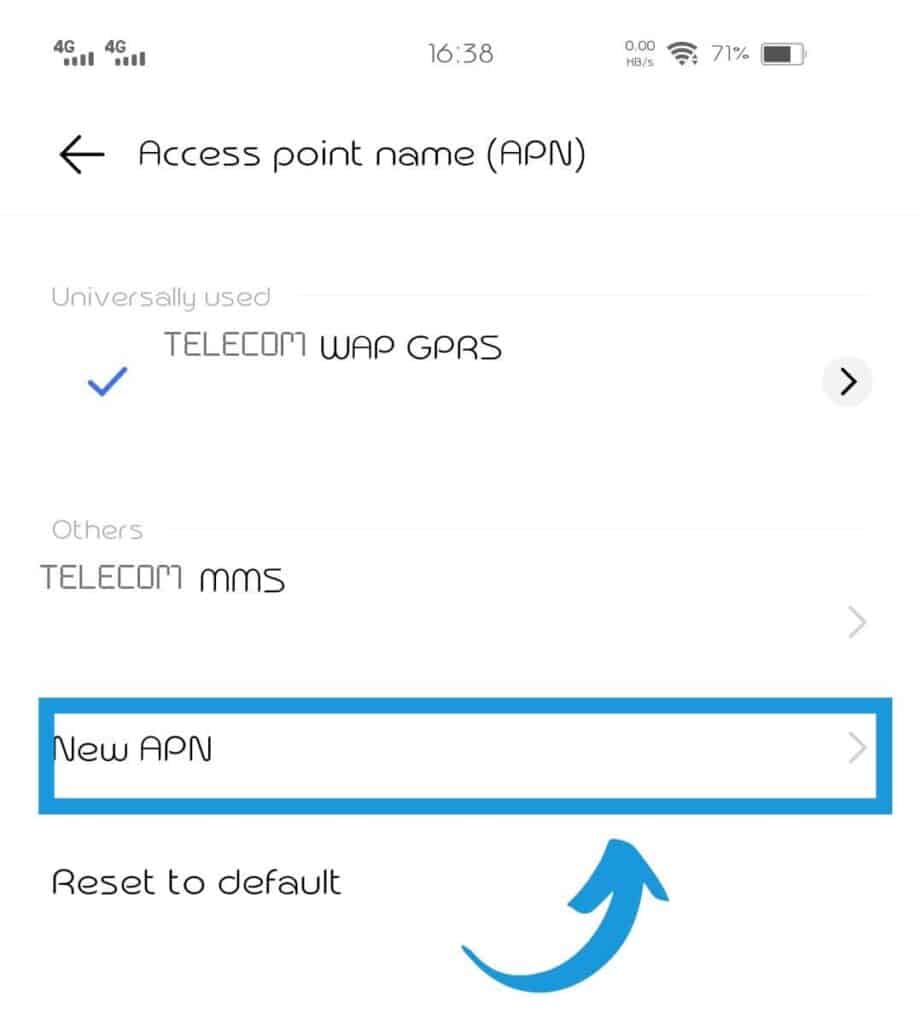
- Here, add MMS information like APN, Name, MMSC, MMS proxy, and more that is needed and save the details.

- Restart your Android device to make the changes work.
Messages Settings
If, even after making changes in phone settings, the problem persists, head towards making some changes in message settings.
Depending upon the phone’s model and manufacturer, the MMS limit and other settings may vary. You need to move into these settings to see the problem with the picture sending.
How to set up
Here are the steps you need to follow to change the message settings.
- Open the App and head towards Advanced settings; there might be options for picture/MMS sending.

- If you can see the MMS settings in the Advanced settings section, check whether the problem lies there or not. The MMS options might be detrimental in sending picture messages.
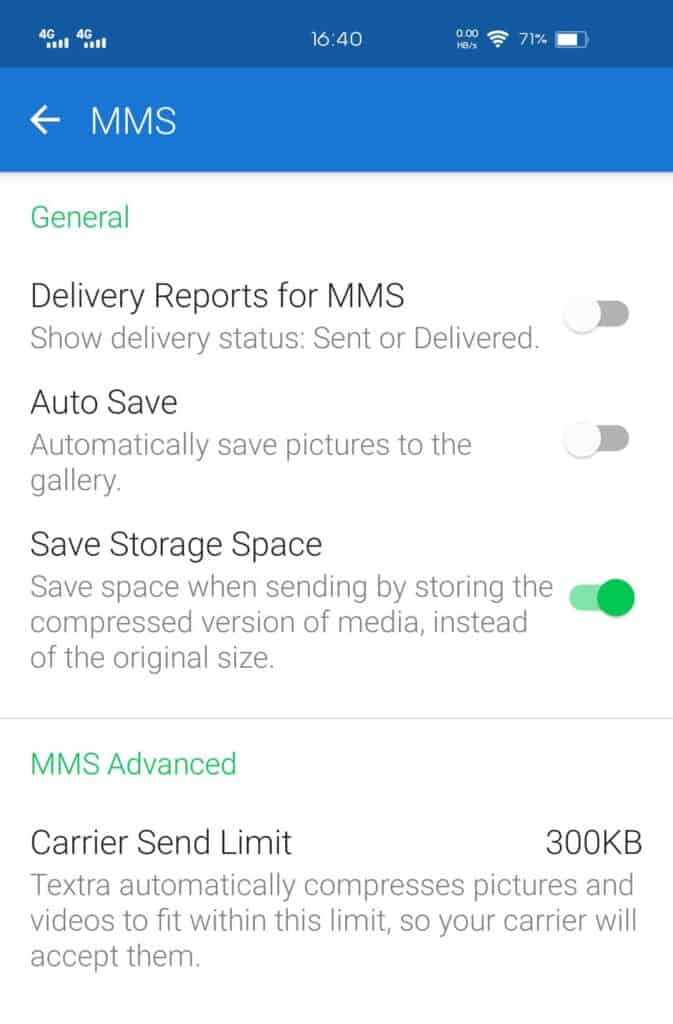
- Try securing the options and sending the picture messages again.
Text Settings
If you have tried making VPN settings and Messages Settings changes and still cannot send pictures via your phone, your Textra app may have some trouble.
For instance, if the file limit has reached Textra and you cannot send pictures. Therefore, you need to make changes here to send the pictures without any problem.
Therefore, you need to check your network and check the carrier limits.
Network Check
To send pictures via Textra, you need to ensure a strong network connection. This might be possible if you switch to cellular data, not Wi-Fi. So, the best thing to do here would be to turn off anything related to sending picture texts over Wi-Fi and activating mobile data.
Carrier Limit
It might sometimes happen that the carrier limit has been exceeded, and then the pictures that take time to get uploaded and won’t push through. So, what you need to do here is;
- Reach out to Carrier Sending Limit via Settings and MMS option.
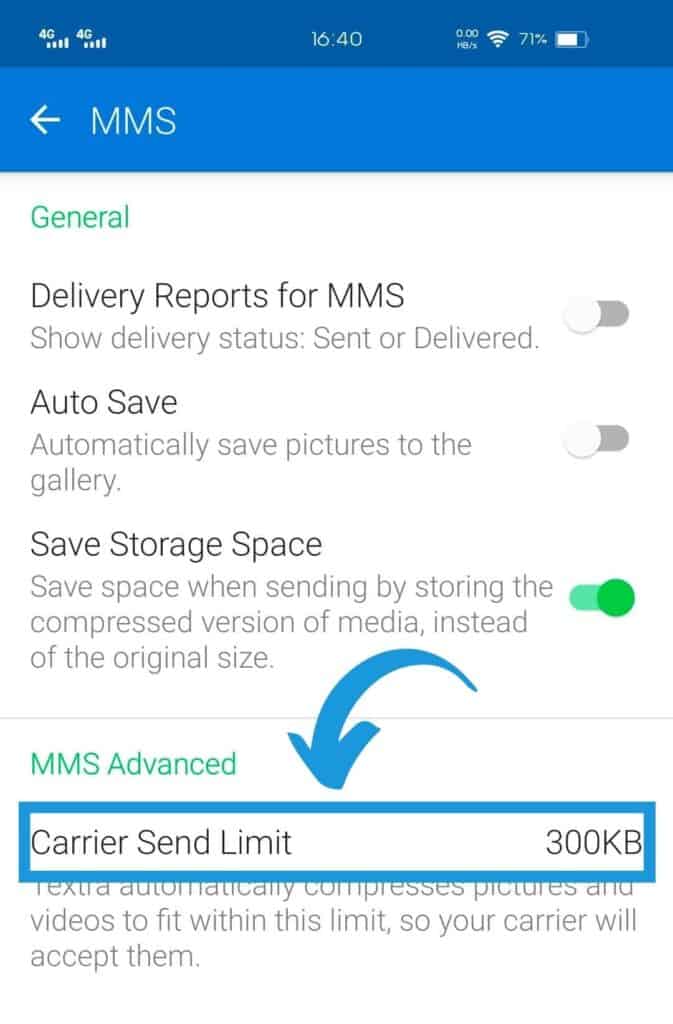
- You can choose up to 2M. However, the best choice would be to set for a no limit option.
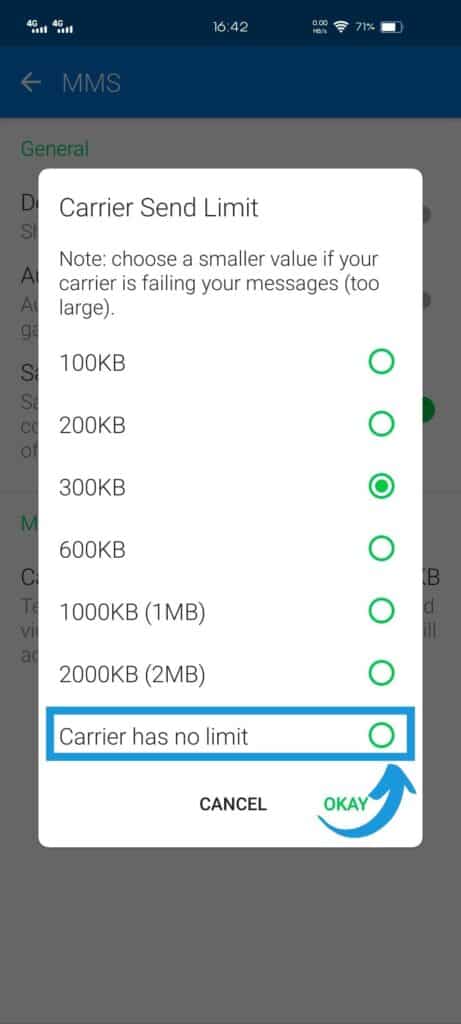
- It is then possible that your picture sending issue will be solved.