

GIFs are also known as Graphics Interchange Formats. Originally introduced in 1987, it has now exploded the social media world with entertainment and fun. It has become an easier way of showing expressions even while living apart. Want to have experience on your own; get to know how to save GIFs on Android for perfect enjoyment.
What are GIFs?
The GIF was first created by Steve Wilhite of CompuServe on 15 June 1987. It is a lossless image file format that supports static and animated images.

It contains several images combined into a single file. GIFs are created when these images are displayed in succession resulting in a low-file-size animation. These are most popular now on social media, blogs, and instant messaging applications, where people use them as emotive reactions like Textra, Whatsapp, Messenger, Snapchat, etc.
GIFs have a limited number of colors so cannot be used as photographs but are suitable for solid graphics. These are also used to store low-color sprite data for games and websites. Also, these GIFs can be used for small animations and low-resolution video clips.
Best sources to download/save GIFs on Android phones?
There are five best places to download GIFs of your choice:
i. GIPHY
GIPHY was created with a mission statement, “Google for GIFs.” Alex Chung and Jace Cooke created it in the year 2013.
It is one of the best places for GIF-hunting. You can get the GIFs of your choice simply by searching through them.

How to save GIFs from GIPHY?
Well! Downloading GIFs from GIPHY is incredibly easy; you can follow these steps to get the GIP straight from GIPHY to your Android phone.
- Go to giphy.com through your browser.
- Browse the website and search through the various categories available.
- Click on the thumbnail to open it when you find the GIF of your choice.
- Right-click on it, and you’ll see a couple of options menu items appear.
- Select Save Image or Download the image, whatever option is available to you.
- You’ll get the GIF from the GIPHY website to your Android phone’s gallery.
ii. Tenor
It was previously called Riffsy and has become the biggest competitor to GIPHY in the years.

GIPHY and Tenor have similar search functions and layouts, except for one thing; Tenor has many more diversions in the GIFs than GIPHY. It provides you with many interesting options for the GIF you’re searching for.
iii. Reddit

Reddit is an excellent choice for getting your desired GIFs. It’s amazing to provide you with GIFs from the internet that no other app can find.
iv. Gfycat
It is one of the best GIF sources created to provide the user with the effect of both GIF and HTML5 video. It brings them both together and provides users with more playback options.
This source has a bundle of high-quality GIFs, but its search function isn’t the best.

v. Reaction GIF
This source has an amazingly intuitive way of providing you with GIFs based on several emotional responses. It comes with “I am feeling” and “My answer is” search options so you can get your GIFs relevant to your feelings.

Though this GIF source lacks some other sophisticated suggestions, it’s fast and quick to go, making it the choice for most GIF lovers.
How to download/save GIFs on Android?
GIFs are very easy to download; you need to follow simple steps and enjoy using the GIFs on your Android phone. Here are the steps that you need to follow:
-
Select your GIF
The first thing you need to do is to find the GIF that you’d like to save onto your Android phone. You can use Tumblr, GIPHY, and even Google to search for the movie, show, video, or a specific emotion you like to have on your smartphone.
-
Press and Hold
Once you’ve selected the GIF you want, press and hold your finger on a particular GIF image; this will open up a small menu of options, and then you have to take the next step.
-
Save/Download
When this small menu of options opens, you must download/save images. Choose the option ‘Save Image’ or ‘Download.’ It doesn’t matter what you choose; you’ll get your GIF on your Android smartphone.
This is as simple as that. By following all these simple steps carefully, you’ll get your desired GIF in your gallery.
However, if you do not find your downloaded GIF in your gallery, it might be in your downloads. You can get your GIF by browsing your phone’s Downloads.
So, you don’t need to ask yourself, “Where are the GIFs on my phone?” And once you’ve found them, you can now upload them anywhere you want.
Why don’t GIFs work on my Android?
There might be many reasons the GIFs won’t play on Android. However, if this is the case with you, here are some things that you can try out to fix it:
Clear Gboard App Cache
Sometimes the cache of texts, scripts, and other entities might hamper storage, and the Gboard GIF might stop working. In this case, whenever the GIF is not working on your Android, try clearing out the app cache. You may see different options or things based on the phone brand you’re using.
Clearing Gboard Cache
- In Settings, tap on the Applications option (according to your phone).
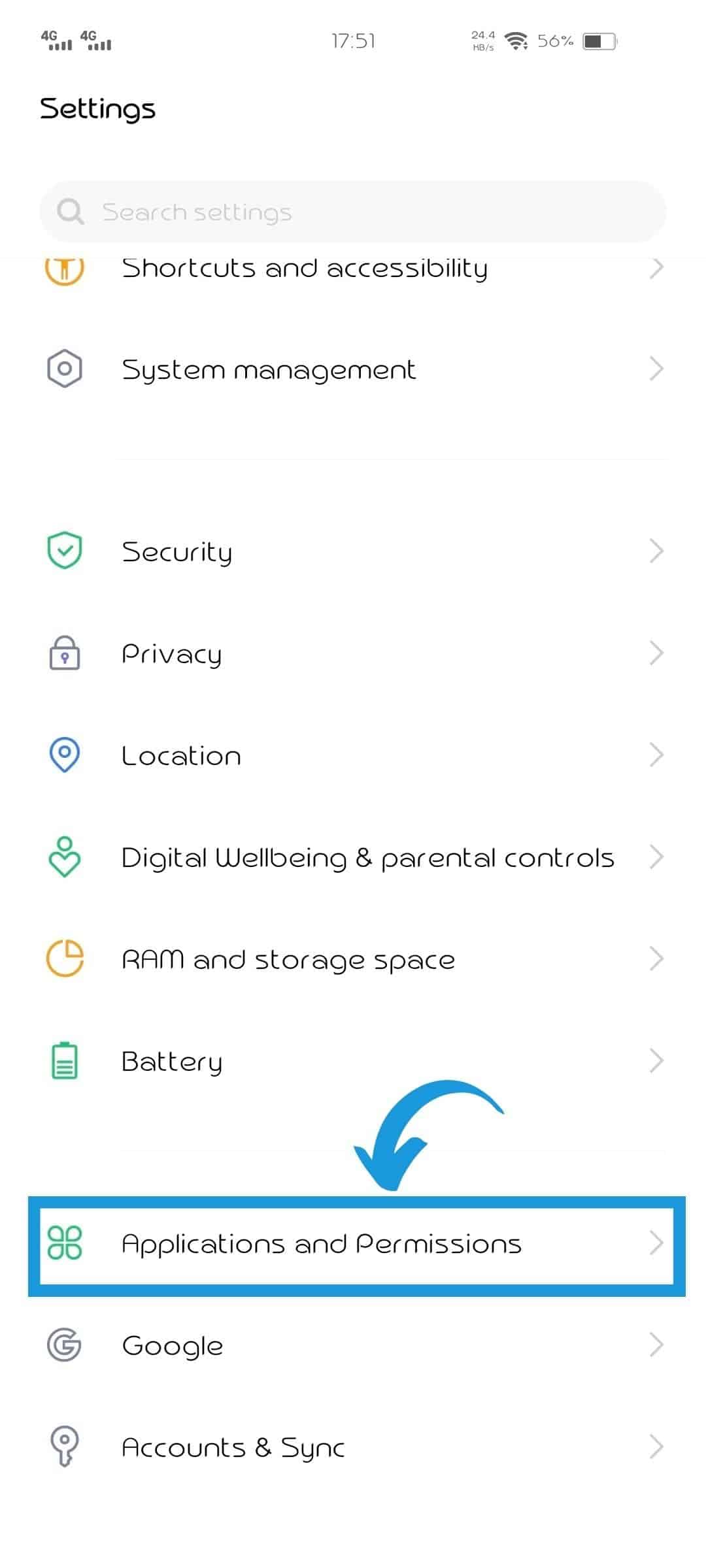
- Select the app manager (settings) from there.

- Get to the Gboard option and tap on it.
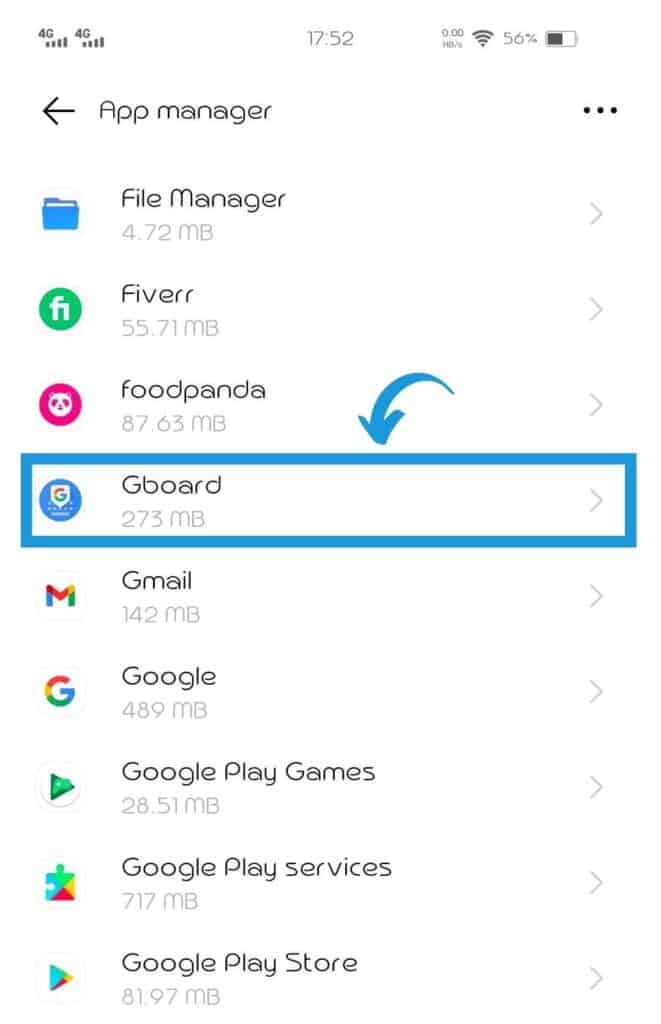
- Tap on Internal Storage to go further.

- Tap on Clear cache.

This will work if the problem is with the app’s cache; if not, then head towards trying the next step.
Restart Your Phone
Restart your phone if the Gboard GIF is not working on your Android smartphone. It’s a one size fits all solution. You can do it by merely long-pressing the shutdown button and then tapping the Restart option.
Update Gboard
When you find your GIF not working on an Android phone, you must try updating the app. Updates improve and enhance the functionality of the app.
To update the Gboard App, here’s what you need to do:
- Go to the Google Play Store.
- Click on the image circle in Play Store’s search bar right corner.
- Tap on Manage Apps & Device.
- Now tap on the Manage tab.
- If there’s any update pending for the app, get that. You’ll find it under the Updates available tab.
- To update it, tap on the Update icon and then wait until it is completed.
Force Stop Gboard App
This is the last option you must go for if your GIFs are not working correctly on your Android phone. It would help if you did not try it unless you’ve tried all the above options and none of them worked as a solution.
- Tap on the Applications option in Settings.
- Tap on the Gboard app. (Explained already and the difference is below)
Select the Force Stop option among the two: Uninstall/Disable and Force Stop options.

We hope that you’ll get all the methods on how to save GIFs on an Android phone along with your answers to download/save problems. That’s all from our side!


